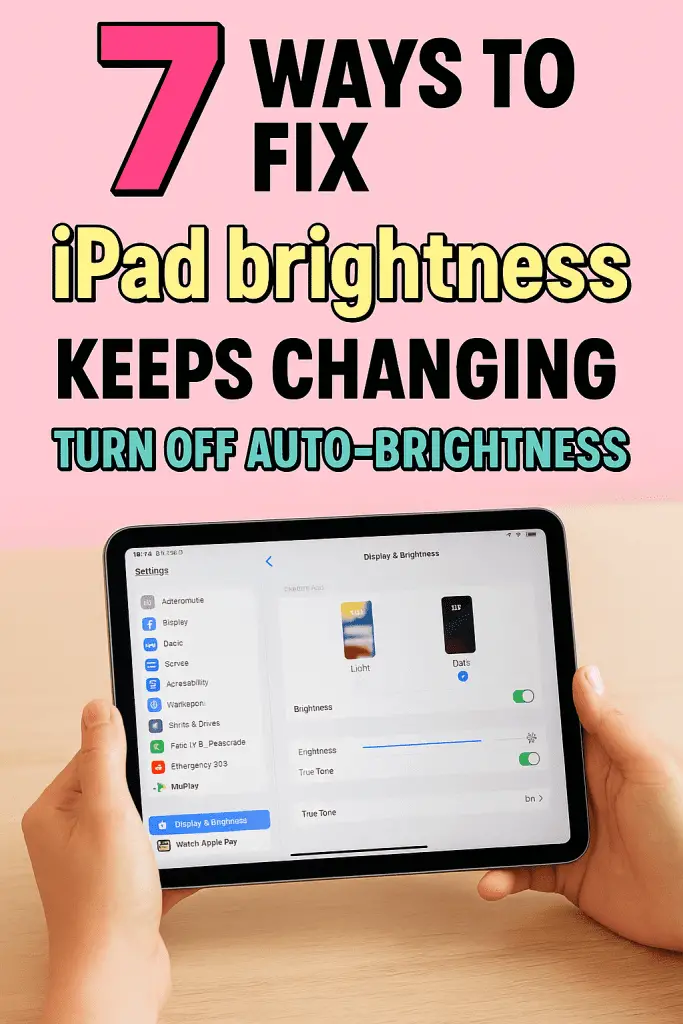
Ever feel like your iPad has a mind of its own? One minute the screen looks perfect, and the next it suddenly dims or gets way too bright—without you touching a thing. Yeah, it’s annoying. I’ve been there, squinting at my iPad late at night, wondering if I accidentally triggered some secret setting. Spoiler alert: it’s usually Auto-Brightness, and today we’re going to shut that down together.
Let’s talk through why this happens, how to fix it, and a few extra tweaks most people completely miss. Think of this as a friendly chat between fellow iPad enthusiasts who just want their screens to behave.
Why Your iPad Brightness Keeps Changing
Before we start flipping switches, it helps to know what’s going on behind the scenes. Your iPad isn’t broken, and it’s not trolling you—IMO, it’s just trying a little too hard to be helpful.
The Role of Auto-Brightness
Auto-Brightness uses your iPad’s ambient light sensor to adjust screen brightness based on your surroundings. Walk into a darker room? Screen dims. Sit near a window? Screen brightens. Sounds smart, right?
In theory, yes. In real life, not always.
Auto-Brightness can:
- Overreact to small lighting changes
- Make the screen too dim indoors
- Brighten suddenly while watching videos
- Feel inconsistent and distracting
If you value consistent brightness, this feature can feel more annoying than useful.
True Tone and Why It Confuses People
Another sneaky feature is True Tone. It doesn’t technically change brightness, but it does change color temperature. That shift can make the screen look brighter or duller.
True Tone adjusts colors based on ambient light so whites look more natural. Nice idea, but paired with Auto-Brightness, it can feel like double chaos.
How to Disable Auto-Brightness on iPad
Alright, let’s get to the fix. This is the main reason you’re here, and luckily, it’s quick once you know where Apple hid the setting.
Step-by-Step Guide to Turn Off Auto-Brightness
Follow these steps exactly:
- Open Settings
- Tap Accessibility
- Select Display & Text Size
- Scroll all the way down
- Toggle Auto-Brightness OFF
That’s it. No restart needed. Your iPad will now keep brightness exactly where you set it.
FYI, Apple moved this setting in later iPadOS versions, so if you were hunting under Display & Brightness before, you weren’t crazy.
What Happens After You Disable Auto-Brightness
Once Auto-Brightness is off, your iPad stops making decisions for you. But there are a few things you should know so nothing catches you off guard.
Manual Brightness Control Explained
You’ll now control brightness manually using:
- Control Center (swipe down from top-right)
- Settings > Display & Brightness
The screen will stay at the level you choose until you change it again. No random dimming. No surprise brightness spikes.
Will This Affect Battery Life?
Short answer: maybe, but not much.
Auto-Brightness can save battery in some cases, but a constantly dim screen can also hurt usability. A slightly brighter, stable screen is often worth the tiny battery trade-off.
Battery impact depends on:
- Screen brightness level
- Usage duration
- App types (video vs reading)
Most users won’t notice a dramatic difference.
Other Settings That Make Brightness Act Weird
Disabling Auto-Brightness helps a lot, but it’s not the only setting that can mess with how your screen looks.
Turn Off True Tone (Optional but Helpful)
If your screen still feels “off,” try disabling True Tone.
Here’s how:
- Go to Settings
- Tap Display & Brightness
- Toggle True Tone OFF
This locks your color temperature so the display looks consistent in all lighting.
Check Night Shift Settings
Night Shift warms the screen at night to reduce eye strain. Again, great feature—but it can make the display feel dim or yellow.
To adjust it:
- Open Settings > Display & Brightness > Night Shift
- Disable it or set a custom schedule
If you’re editing photos or watching videos, Night Shift can be extra distracting.
Low Power Mode and Brightness Limits
Here’s one people often miss.
How Low Power Mode Affects Brightness
When Low Power Mode is enabled, iPadOS may limit brightness to save battery. Even if Auto-Brightness is off, the system can still cap brightness levels.
You’ll know Low Power Mode is on if:
- The battery icon turns yellow
- Performance feels slightly reduced
To disable it:
- Go to Settings > Battery
- Toggle Low Power Mode OFF
Once disabled, full brightness control returns.
iPad Models and iPadOS Differences
Not all iPads behave exactly the same. Apple tweaks features depending on hardware and software.
Newer iPads vs Older Models
On newer iPads:
- Auto-Brightness is more sensitive
- True Tone is more advanced
- HDR content can boost brightness automatically
Older models may:
- Lack True Tone
- Have simpler sensors
- Feel more stable by default
If you upgraded recently, that might explain why brightness behavior suddenly feels different.
iPadOS Updates Can Reset Settings
After a major iPadOS update, some settings quietly reset. Auto-Brightness can turn itself back on without asking. Rude, right?
If brightness starts acting up after an update, always recheck:
- Auto-Brightness
- True Tone
- Night Shift
This quick audit saves a lot of frustration.
When Auto-Brightness Is Actually Useful
I’m not here to totally trash Auto-Brightness. For some people, it works great.
Situations Where It Makes Sense
Auto-Brightness can be helpful if you:
- Move between indoor and outdoor spaces often
- Use your iPad mainly for reading
- Want maximum battery efficiency
- Prefer a hands-off experience
If that sounds like you, maybe leave it on. There’s no “right” choice—just what feels best.
A Middle-Ground Approach
Some users:
- Turn off Auto-Brightness
- Keep True Tone on
- Manually adjust brightness once or twice a day
This combo offers consistency without losing all adaptive features.
Troubleshooting: Brightness Still Changing?
If you’ve turned everything off and the screen still changes, don’t panic. There are a few last things to check.
Restart Your iPad
Classic advice, but it works.
A restart clears temporary glitches that can affect display behavior.
Check for Display Dimming in Specific Apps
Some apps:
- Control brightness internally
- Use HDR or video playback modes
- Override system settings
Video streaming apps are common offenders. Test brightness on the home screen to compare.
Reset All Settings (Last Resort)
If nothing works:
- Go to Settings > General > Transfer or Reset iPad
- Tap Reset
- Choose Reset All Settings
This won’t erase your data, but it will reset preferences. Use it only if the problem is driving you nuts.
Final Thoughts: Take Back Control of Your Screen
If your iPad brightness keeps changing, it’s usually not a bug—it’s a feature that doesn’t match your preferences. By disabling Auto-Brightness, checking True Tone, and watching out for Low Power Mode, you can make your screen behave exactly how you want.
The best part? Once it’s set, you rarely have to think about it again. No more surprise dimming mid-video. No more eye strain from random brightness jumps 🙂
