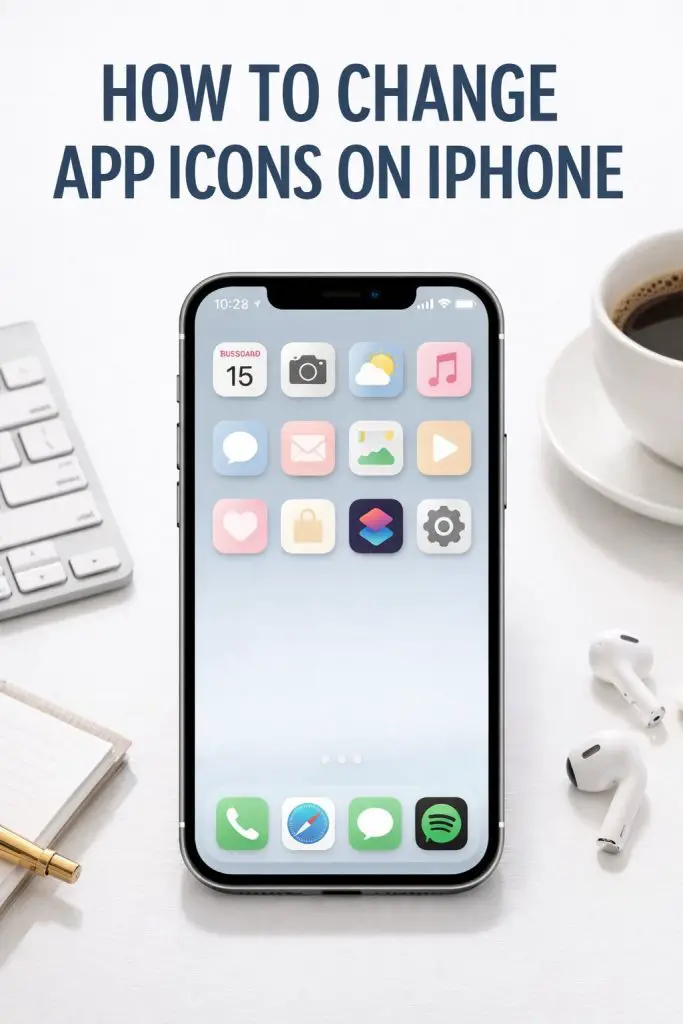
Ever opened your iPhone, stared at the Home Screen, and thought… this looks boring? You’re definitely not alone. I remember the first time I saw someone’s iPhone with perfectly color-coordinated app icons and aesthetic layouts — and my immediate reaction was, wait… how did they do that?!
If you’ve ever wanted to personalize your iPhone beyond wallpapers and widgets, changing app icons is one of the easiest ways to make your phone feel truly yours. The good news? You don’t need to jailbreak your phone, download sketchy apps, or be tech-savvy to pull this off.
In this guide, I’ll walk you through exactly how to change app icons on iPhone, step by step, in plain English. By the end, you’ll be customizing your Home Screen like a pro.
Can You Actually Change App Icons on iPhone?
Let’s clear this up first, because it’s a common question.
Apple doesn’t allow native app icon changes (at least not yet). But thanks to a clever workaround using the Shortcuts app, you can create custom icons that open your apps instantly.
Is it perfect? Almost.
Is it worth it? IMO, absolutely.
What You Need Before You Start
Before jumping in, make sure you have these basics ready:
- An iPhone running iOS 14 or later
- The Shortcuts app (pre-installed on most iPhones)
- Custom icon images (PNG or JPG)
- A little patience the first time around 😄
FYI: Once you’ve done it for one app, the rest go much faster.
How To Change App Icons on iPhone (Step-by-Step)
This is the method most people use — simple, safe, and fully reversible.
Step 1: Open the Shortcuts App
- Go to your Home Screen
- Open Shortcuts
- Tap the “+” icon in the top-right corner
This creates a new shortcut.
Step 2: Add the “Open App” Action
- Tap Add Action
- Search for Open App
- Select it
- Tap Choose and pick the app you want to customize
This tells your iPhone which app to open when the icon is tapped.
Step 3: Customize the App Icon
Here’s where the fun begins.
- Tap the down arrow next to the shortcut name
- Select Add to Home Screen
- Tap the icon placeholder
- Choose:
- Take Photo
- Choose Photo
- Choose File
Upload your custom icon image.
Pro Tip: Square images work best for clean results.
Step 4: Name Your Custom App Icon
- Enter the app name (or anything you want)
- Tap Add
- Tap Done
Boom 💥 — your new custom app icon is now on your Home Screen.
Where to Find Custom App Icons
Don’t want to design icons from scratch? Totally understandable.
Here are some easy options:
- Pinterest – search for “iPhone app icons aesthetic”
- Etsy – paid icon packs with matching themes
- Canva – design your own with drag-and-drop tools
- Free icon websites (just check usage rights)
Look for styles like:
- Minimal
- Pastel
- Dark mode
- Neon
- Vintage
How To Hide Original App Icons (Optional but Recommended)
Once you add custom icons, the original apps still exist — and that can clutter things.
Here’s how to clean it up:
Option 1: Move Original Apps to App Library
- Long-press the original app
- Select Remove App
- Choose Move to App Library
Your custom icon stays, but the original is hidden.
Option 2: Create a “Hidden” Folder
- Drag all original apps into one folder
- Place the folder on a second or third Home Screen page
Out of sight, out of mind.
Does Changing App Icons Slow Down Your iPhone?
Short answer: Not really.
There is a tiny delay because the shortcut runs first, then opens the app. On newer iPhones, it’s barely noticeable.
Good news: iOS updates have significantly reduced the delay compared to earlier versions.
Will Notifications Still Work?
Yes — but with a catch.
- Notifications still come from the original app
- Badge counts won’t show on the custom icon
If notifications matter to you, keep the original app accessible in App Library.
Common Problems (And Easy Fixes)
Let’s troubleshoot a few things people often run into.
App Opens Shortcuts First
This is normal behavior.
There’s currently no way to bypass this completely.
Custom Icon Looks Blurry
- Use high-resolution images
- Avoid screenshots when possible
- Stick to PNG files for best quality
Icon Name Looks Weird
- Keep names short
- Avoid emojis if you want a clean look
- Match naming style across icons
Consistency matters more than you think.
How To Change App Icons Back to Normal
Changed your mind? No worries.
To revert:
- Delete the custom icon from Home Screen
- Use the original app from App Library
That’s it — no permanent changes made.
Creative iPhone Home Screen Ideas
If you’re already changing icons, why stop there?
Try combining:
- Custom icons
- Matching wallpapers
- Widgets (clock, weather, quotes)
- Color-based themes
Popular themes include:
- Beige aesthetic
- Dark mode minimal
- Pink pastel
- Retro iOS
- Black & white
IMO, themed Home Screens make using your phone way more enjoyable.
Is It Safe to Change App Icons on iPhone?
Yes — 100% safe when using Shortcuts.
You’re not:
- Jailbreaking
- Installing third-party system apps
- Modifying iOS files
Apple fully supports Shortcuts, so you’re good.
Final Thoughts: Is It Worth Customizing App Icons?
Absolutely.
Changing app icons may seem like a small thing, but it makes your iPhone feel personal, intentional, and fun. Once you see your customized Home Screen, it’s hard to go back.
To recap:
- You can’t change icons natively, but Shortcuts works great
- The process is beginner-friendly
- You can undo everything anytime
- Custom icons = instant aesthetic upgrade
So if you’ve been thinking about refreshing your iPhone’s look, this is your sign to try it. Pick a theme, start with a few apps, and build from there.
Your Home Screen should make you smile every time you unlock your phone — don’t you think?
