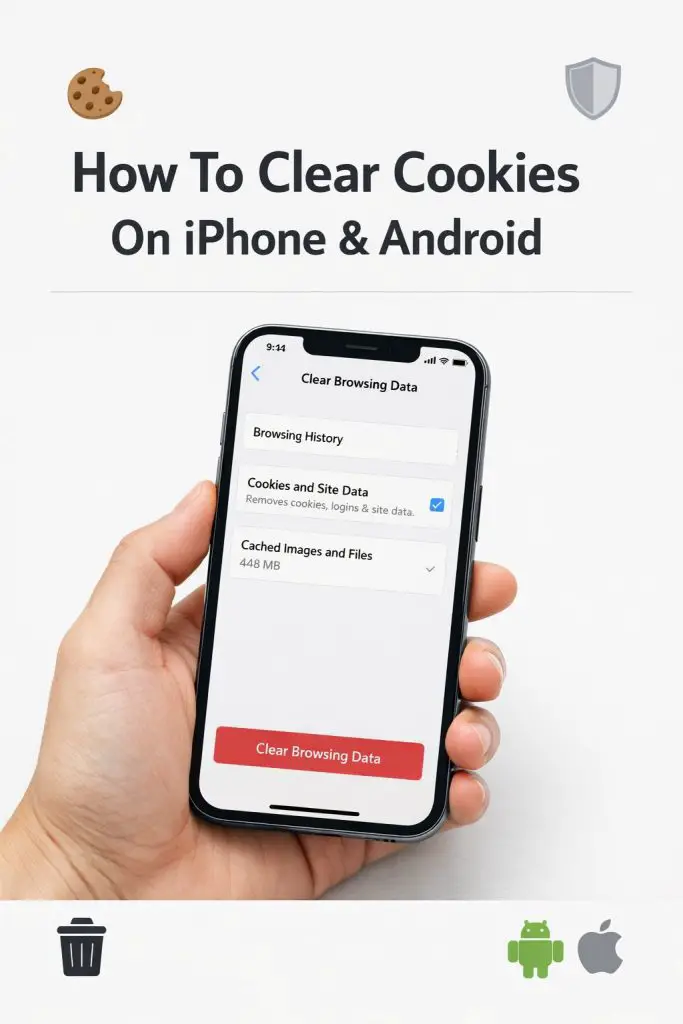
Have you ever noticed your phone acting a little… off? Websites loading strangely, apps showing outdated info, or ads following you everywhere no matter what you search? Yeah — cookies are usually the culprit. If you’ve ever wondered how to clear cookies on iPhone and Android, you’re definitely not alone.
I started digging into this topic after my own phone felt sluggish and certain websites just refused to load correctly. Clearing cookies fixed things almost instantly, and that’s when I realized how powerful (and misunderstood) this simple task really is. So let’s break it all down together — no tech jargon, no confusion, just clear steps you can actually follow.
By the end of this guide, you’ll know exactly how to delete cookies on both iPhone and Android, why it matters, and when you should do it.
What Are Cookies, Really?
Before we jump into the “how,” let’s quickly talk about the “what.”
Cookies are small data files that websites store on your device. They help sites remember things like:
- Your login details
- Language preferences
- Items in your shopping cart
- Previously visited pages
Sounds helpful, right? And it is — to a point.
Over time, cookies can pile up and cause problems like slow browsing, login issues, or privacy concerns. That’s why knowing how to clear cookies on your phone is such a useful skill.
Why You Should Clear Cookies on Your Phone
You don’t need to clear cookies every day, but doing it occasionally has real benefits.
Here’s why it’s worth your time:
- Fix website loading issues
- Improve browser performance
- Protect your privacy
- Free up a bit of storage space
- Solve login or session errors
IMO, it’s one of the easiest phone maintenance habits you can pick up.
How Often Should You Clear Cookies?
This depends on how you use your phone.
A good rule of thumb:
- Light browsing → once every 1–2 months
- Heavy browsing or shopping → once a month
- If something breaks → clear them immediately
FYI, clearing cookies won’t harm your phone — but it will sign you out of some websites.
How To Clear Cookies On iPhone (Step-by-Step)
Apple keeps things simple, but the steps vary slightly depending on which browser you use.
Clear Cookies on iPhone (Safari)
Safari is the default browser on iPhones, so let’s start there.
Steps:
- Open Settings
- Scroll down and tap Safari
- Tap Clear History and Website Data
- Confirm by tapping Clear History and Data
That’s it. This removes cookies, browsing history, and cache in one go.
Important:
You’ll be logged out of websites and some site preferences will reset.
Clear Cookies for Specific Websites on Safari (Optional)
Don’t want to wipe everything? You can delete cookies for individual sites.
Steps:
- Go to Settings → Safari
- Tap Advanced
- Tap Website Data
- Swipe left on a website to delete its cookies
or - Tap Remove All Website Data
This option is great if only one site is causing trouble.
Clear Cookies on iPhone (Chrome)
Using Chrome instead of Safari? No problem.
Steps:
- Open the Chrome app
- Tap the three-dot menu
- Tap Settings
- Select Privacy and Security
- Tap Clear Browsing Data
- Check Cookies, Site Data
- Tap Clear Browsing Data
You can also choose a time range if you only want to clear recent cookies.
How To Clear Cookies On Android (Step-by-Step)
Android phones give you flexibility, but most users browse with Chrome — so we’ll start there.
Clear Cookies on Android (Chrome)
Steps:
- Open the Chrome app
- Tap the three-dot menu
- Tap Settings
- Go to Privacy and Security
- Tap Clear Browsing Data
- Select Cookies and site data
- Tap Clear Data
Done. Quick and painless.
Clear Cookies for a Specific Site on Android
If one website is acting weird, you can target just that site.
Steps:
- Open Chrome
- Go to Settings
- Tap Site Settings
- Tap All Sites
- Choose the website
- Tap Clear & Reset
This keeps other site data untouched.
Clear Cookies on Android (Other Browsers)
Using Samsung Internet, Firefox, or another browser? The steps are similar:
- Open browser settings
- Go to Privacy or Browsing Data
- Select Cookies
- Tap Clear
Look for keywords like privacy, history, or data.
What Happens After You Clear Cookies?
Let’s set expectations so nothing surprises you.
After clearing cookies:
- You’ll be logged out of most websites
- Saved preferences may reset
- Sites may load slightly slower the first time
But the upside?
- Cleaner browsing
- Fewer glitches
- Better privacy
Totally worth it, right?
Will Clearing Cookies Delete Passwords or Photos?
Short answer: No — if you’re careful.
Cookies are different from saved passwords and photos.
However, when clearing data:
- Do NOT select “Saved Passwords”
- Do NOT select “Autofill Data”
As long as you only clear cookies and site data, your personal files are safe.
Cookies vs Cache: What’s the Difference?
People often confuse these two, so let’s clear it up (pun intended).
Cookies:
- Store login info and preferences
- Track sessions and activity
Cache:
- Stores images and files to load pages faster
Clearing both can improve performance, but cookies affect logins more.
Should You Clear Cookies or Cache First?
If you’re troubleshooting a problem:
- Clear cookies first
- If the issue persists, clear cache
- As a last resort, clear both
FYI, clearing cache is usually less disruptive.
Common Problems Clearing Cookies Can Fix
If you’re experiencing any of these, cookies may be the issue:
- Website won’t load correctly
- Login loops or errors
- Old content keeps appearing
- Pages redirect incorrectly
- Ads feel extra creepy
Clearing cookies often solves these in minutes.
Privacy Tips After Clearing Cookies
Want better privacy moving forward?
Try these simple habits:
- Use private/incognito mode for sensitive browsing
- Block third-party cookies in browser settings
- Review site permissions regularly
- Avoid sketchy websites
Small changes add up fast.
Final Thoughts: Is Clearing Cookies Worth It?
Absolutely.
Knowing how to clear cookies on iPhone and Android gives you more control over your phone, your privacy, and your browsing experience. It’s a small action with big benefits — especially when your device starts acting up.
To recap:
- Cookies help, but too many cause issues
- Clearing them improves performance and privacy
- The process is quick on both iPhone and Android
So next time your phone feels sluggish or a website won’t behave, you know exactly what to do. Give it a try, see the difference for yourself, and make it a habit that keeps your device running smoothly.
