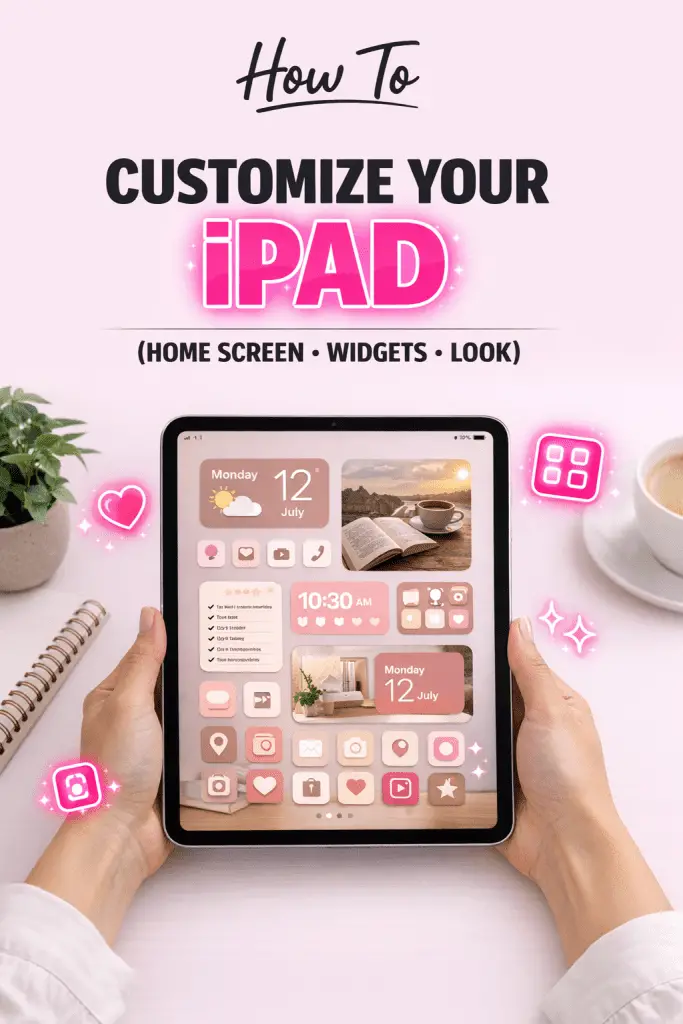
Make Your iPad Feel Yours
Let’s be honest—your iPad probably does a lot already, but does it actually feel like your iPad? If you’re still rocking the default layout, stock settings, and boring wallpapers, you’re missing out on some seriously fun (and useful) customization options. IMO, half the joy of owning an iPad is bending it to match your style, workflow, and personality.
I remember when I first got my iPad—I loved the hardware, but everything felt… generic. Once I started tweaking the Home Screen, adjusting gestures, and customizing notifications, it suddenly clicked. The device felt faster, smarter, and way more me. If you’ve ever thought, “There has to be a better way to use this thing,” you’re in the right place 🙂
Personalizing Your Home Screen Like a Pro
Your Home Screen is where everything starts, so let’s make it both functional and good-looking.
Rearranging Apps for Flow, Not Chaos
Instead of dumping apps wherever they land, try organizing them based on how you actually use your iPad. Think about muscle memory—where does your thumb naturally go?
A few smart layout ideas:
- Keep daily-use apps (Safari, Notes, Mail) on the first screen
- Group similar apps together for quick access
- Leave some empty space for a cleaner look
This simple tweak alone can make your iPad feel less cluttered and more intentional.
Using App Library and Folders Wisely
Folders are underrated, but when done right, they’re powerful. Name them clearly and keep them focused.
Examples that work well:
- Productivity
- Creativity
- Entertainment
- Social
The App Library (that screen all the way to the right) is also your friend. You can remove apps from the Home Screen without deleting them. FYI, this keeps things minimal while still keeping everything accessible.
Customizing Widgets for Function and Style
Widgets are where customization really starts to shine.
Adding and Stacking Widgets
Widgets let you see info at a glance without opening apps. Weather, calendar, battery levels—it’s all right there.
Popular widget choices:
- Weather for quick daily checks
- Calendar for deadlines and plans
- Battery widget for accessories like Apple Pencil
You can also create Smart Stacks, which automatically rotate widgets based on time and usage. It feels almost psychic when done right.
Choosing the Right Widget Sizes
Widget size matters more than you think. Large widgets look great but take space. Small ones keep things tidy.
A balanced approach:
- Large widget for one key app
- Medium widgets for daily info
- Small widgets for quick data
This mix keeps your Home Screen useful without overwhelming it.
Lock Screen Customization That Actually Matters
Apple finally made the Lock Screen more customizable, and it’s not just about looks.
Changing Wallpapers with Purpose
A wallpaper can be more than decoration. It sets the tone every time you pick up your iPad.
Try this:
- Calm photos for focus
- Dark wallpapers to reduce eye strain
- Minimal designs to avoid distractions
You can even set different Lock Screens for different Focus modes, which feels next-level once you get used to it.
Lock Screen Widgets and Fonts
You can now tweak fonts, colors, and widgets right on the Lock Screen.
Useful Lock Screen widgets include:
- Weather conditions
- Calendar events
- Time zone clocks
It’s subtle, but these small changes make your iPad feel polished and personal.
Mastering Focus Modes for a Smarter iPad
Focus modes are one of the most powerful customization tools—and most people barely use them.
Creating Custom Focus Profiles
Instead of just “Do Not Disturb,” create Focus modes based on real-life situations.
Examples:
- Work
- Study
- Reading
- Relax
Each Focus can control:
- Which apps appear
- Which notifications come through
- Which contacts can reach you
Once set up, your iPad adapts automatically.
Linking Focus Modes to Home Screens
This is where things get cool. You can assign specific Home Screens to each Focus mode.
For example:
- Work Focus → productivity apps only
- Relax Focus → streaming and reading apps
It’s like having multiple iPads in one device.
Customizing Gestures for Faster Navigation
Gestures make your iPad feel fluid—if you use them right.
Built-in iPad Gestures You Should Use
If you’re still relying on the Home button or on-screen controls, you’re slowing yourself down.
Essential gestures:
- Swipe up to go Home
- Swipe up and hold for App Switcher
- Swipe down from top-right for Control Center
Once these become second nature, your iPad feels insanely fast.
AssistiveTouch for Advanced Control
AssistiveTouch isn’t just for accessibility—it’s great for customization.
You can:
- Create custom gesture shortcuts
- Add quick actions like screenshots
- Reduce physical button usage
Pro tip: Map AssistiveTouch to actions you use daily for instant access.
Customizing Control Center for Instant Access
Control Center is prime real estate. Don’t waste it.
Adding and Removing Controls
You can choose exactly what appears in Control Center.
Useful additions:
- Screen Recording
- Low Power Mode
- Notes
- Text Size
Remove anything you never use. Every swipe should feel intentional.
Making Control Center Work for You
Once customized, Control Center becomes your command hub. Need to record a tutorial? Adjust brightness? Start a timer? It’s all one swipe away.
Making Notifications Less Annoying (Finally)
Notifications can either help you or drive you crazy.
Custom Notification Styles
Not all notifications deserve the same treatment.
You can choose:
- Banners
- Alerts
- Notification Summary
IMO, turning on Scheduled Summary is a game-changer. You get notifications in batches instead of constant interruptions.
App-Specific Notification Settings
Go app by app and decide what really matters.
Ask yourself:
- Do I need instant alerts from this app?
- Can this wait?
Being selective here dramatically improves focus and battery life.
Customizing Keyboard and Typing Experience
If you type a lot on your iPad, this section is gold.
Keyboard Layouts and Shortcuts
You can customize:
- Text replacement shortcuts
- Keyboard languages
- One-handed keyboard mode
For example, create shortcuts for phrases you type often. It saves time fast.
Using External Keyboards Like a Boss
If you use a Magic Keyboard or Bluetooth keyboard, customize your shortcuts.
Helpful shortcuts include:
- Command + Space for search
- Command + Tab for app switching
- Command + H to go Home
Once mastered, your iPad starts to feel like a laptop—minus the bulk.
Customizing Accessibility Features for Everyday Use
Accessibility settings aren’t just for edge cases—they’re for everyone.
Display and Text Adjustments
You can tweak:
- Text size
- Bold text
- Color filters
- Reduce transparency
These settings can reduce eye strain and make long sessions way more comfortable.
Touch and Motion Customization
Features like Reduce Motion and Touch Accommodations can make interactions smoother, especially if you use your iPad for hours at a time.
Small changes here often lead to big comfort improvements.
Personalizing Sounds, Haptics, and Feedback
Sound and vibration settings are subtle but impactful.
Custom Notification Sounds
Different sounds help you recognize alerts without looking at the screen.
You can:
- Assign unique tones to apps
- Adjust volume levels
- Silence unnecessary system sounds
This keeps things informative without being annoying.
Haptic Feedback Tweaks
Haptics give your iPad a more tactile feel. Adjusting them makes interactions feel deliberate and satisfying instead of jarring.
Customizing Your iPad for Productivity or Creativity
Your iPad can adapt to what you do most.
Productivity-Focused Customization
For work or study:
- Minimal Home Screen
- Focus mode with limited notifications
- Note-taking and calendar widgets
This setup reduces distractions and boosts efficiency.
Creativity-Focused Customization
For artists and creators:
- Apple Pencil settings optimized
- Creative app widgets
- Quick-access Control Center tools
Your iPad becomes a creative studio instead of just a tablet.
Conclusion: Turn Your iPad Into Your iPad
Customizing your iPad isn’t about showing off—it’s about making the device work with you, not against you. From Home Screen layouts and widgets to Focus modes and gestures, every tweak adds up to a smoother, smarter experience.
The best part? You don’t need to do everything at once. Start small, experiment, and adjust as you go. Before you know it, your iPad will feel faster, cleaner, and way more personal than it did out of the box.
So go ahead—dive into the settings, break a few defaults, and make your iPad truly yours. Trust me, once you do, there’s no going back
