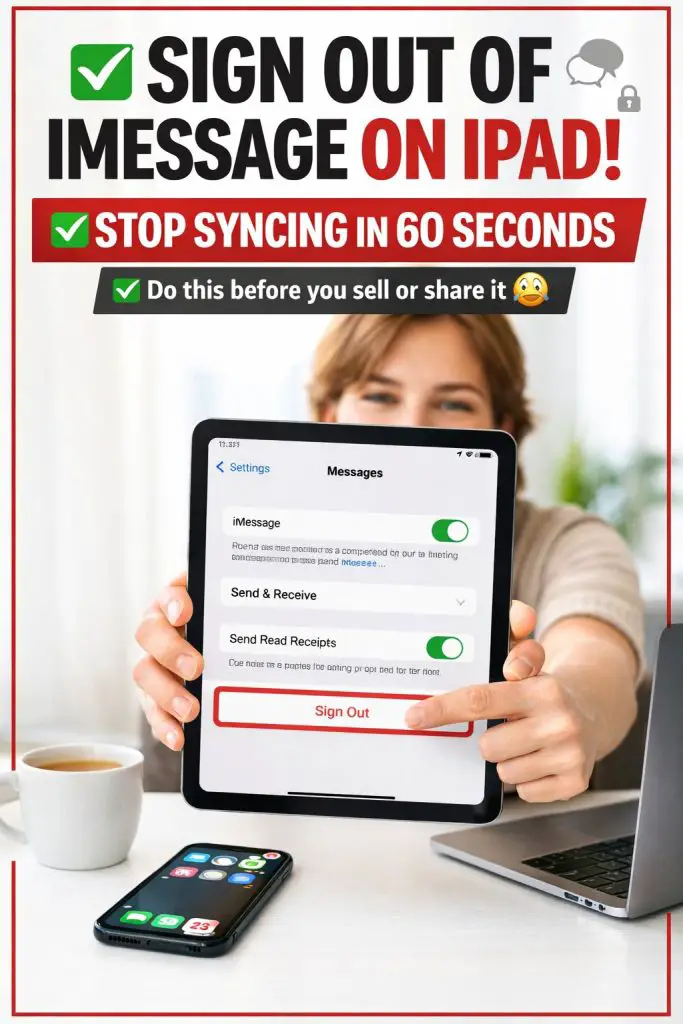
Have you ever picked up your iPad and realized it’s still receiving iMessages meant for your iPhone… or worse, it’s logged into someone else’s Apple ID? 😬 That’s exactly why so many people search for how to sign out of iMessage on iPad. Maybe you’re selling your iPad, handing it to a family member, using it for work, or you just don’t want your messages syncing across devices anymore. Whatever the reason, staying signed in can feel confusing and a little stressful.
Honestly, I’ve been there too. I remember setting up an iPad “just for YouTube and Netflix,” and suddenly—boom—my iMessages started popping up on it like it was my main phone. In my opinion, Apple makes messaging super convenient… until it becomes annoying. I think most people don’t even realize iMessage is linked to their Apple ID until it starts mixing messages between devices. So in this article, I’ll walk you through exactly how to sign out properly (and cleanly) so nothing keeps syncing behind your back.
The good news? You don’t need to be techy to fix this. I’ll keep everything simple, step-by-step, and super clear so you can sign out of iMessage on your iPad with confidence—and avoid accidental message sharing in the future.
Why You Might Want To Sign Out Of iMessage On iPad
Before we jump into steps, let’s talk about why this matters. Because it’s not always obvious until something awkward happens.
Here are the most common reasons people want to sign out:
- You’re selling or giving away your iPad
- Your iPad is logged into someone else’s Apple ID
- You don’t want iMessages syncing between devices anymore
- You’re using your iPad for work or school and want it separate
- You want to stop message notifications and distractions (relatable!)
And yes… signing out is also a smart privacy move.
Quick takeaway: If you don’t want messages showing up on your iPad, you’ll want to either turn off iMessage or sign out of your Apple ID, depending on your situation.
Important First: Know The Difference (Turning Off iMessage vs Signing Out)
This part is super important, because people confuse these two all the time.
Option 1: Turn Off iMessage Only ✅
This stops iMessage on the iPad, but your Apple ID may still remain signed in for things like iCloud, FaceTime, App Store, etc.
Best for you if:
- You still want to keep using the iPad normally
- You just want to stop message syncing
- You’re keeping the device
Option 2: Sign Out of Apple ID Completely ✅
This signs you out from iCloud and Apple services connected to the Apple ID on that iPad.
Best for you if:
- You’re selling or gifting the iPad
- It’s not your Apple ID
- You want total privacy separation
IMO, if you’re giving the iPad away, always sign out completely.
How To Sign Out Of iMessage On iPad (Step-by-Step)
Let’s do the main thing you came here for: signing out of iMessage.
Step 1: Open Settings
- Unlock your iPad
- Tap Settings
Step 2: Go to Messages
- Scroll down
- Tap Messages
Step 3: Turn Off iMessage
- Find the iMessage toggle
- Turn it OFF
✅ That’s it. Your iPad should stop sending and receiving iMessages.
What happens after this?
- You won’t get iMessage popups anymore
- You won’t be able to send iMessages from that iPad
- Your Apple ID may still remain logged in elsewhere (iCloud, App Store)
Pro tip: If you also use FaceTime, you might want to switch that off too (we’ll cover it next).
How To Sign Out Of FaceTime On iPad (Optional But Recommended)
If you’re disabling iMessage, FaceTime is often connected too.
Steps to disable FaceTime:
- Go to Settings
- Tap FaceTime
- Toggle FaceTime OFF
This prevents calls or FaceTime alerts from showing up on that iPad.
How To Completely Sign Out of Apple ID on iPad (Best For Selling or Giving Away)
If you want your iPad totally disconnected from your Apple ID, do this.
Step 1: Open Apple ID Settings
- Go to Settings
- Tap your name at the top (Apple ID profile)
Step 2: Scroll Down and Tap Sign Out
- Scroll all the way down
- Tap Sign Out
Step 3: Enter Your Apple ID Password
Your iPad will ask for your Apple ID password to confirm.
- Type the password
- Tap Turn Off (top-right corner)
Step 4: Choose What to Keep (If Prompted)
You may be asked if you want to keep a copy of data on the iPad, such as:
- Contacts
- Safari data
- Calendars
If you’re keeping the iPad, you can keep a copy if you want.
If you’re giving it away, I recommend turning everything OFF, then signing out.
✅ Now your iPad is no longer tied to that Apple ID.
How To Stop iMessage From Syncing Between iPhone and iPad (Even Without Signing Out)
Sometimes people don’t want to sign out—they just want the syncing to stop.
Here are the settings that usually cause the confusion.
Turn Off Messages in iCloud
- Go to Settings
- Tap your name (Apple ID)
- Tap iCloud
- Tap Messages
- Toggle Use on this iPad OFF
This stops your messages from syncing across devices through iCloud.
FYI: This doesn’t log you out, it simply stops syncing.
Common Issues People Face When Signing Out (And How To Fix Them)
Most of the time, signing out is smooth. But if your iPad is being stubborn, don’t worry—these are common.
Problem 1: “Sign Out” Button Is Greyed Out
This usually happens because of restrictions or Screen Time controls.
Fix it like this:
- Go to Settings
- Tap Screen Time
- Tap Content & Privacy Restrictions
- Turn restrictions OFF temporarily
- Try signing out again
Problem 2: iPad Keeps Receiving Messages Even After Turning Off iMessage
This can happen if:
- iMessage is still enabled on another device
- your Apple ID is still syncing via iCloud
- you have text forwarding enabled
Try these fixes:
- Restart the iPad
- Disable Messages in iCloud
- Check your iPhone settings (next section)
Problem 3: You Forgot Your Apple ID Password
Yeah… it happens to the best of us.
What you can do:
- Use Apple’s password reset option from the login screen
- Or go to your iPhone and reset it from Apple ID settings
- Make sure you’re using the correct Apple ID email
Without the password, Apple may block you from signing out (for security reasons).
Check Your iPhone Too (This Is Where the Sync Magic Happens)
If you’re still seeing messages appear on your iPad, you may need to check iPhone settings.
Turn Off Text Message Forwarding (iPhone)
- On your iPhone, go to Settings
- Tap Messages
- Tap Text Message Forwarding
- Turn OFF the iPad device
This prevents SMS texts (green bubbles) from forwarding to the iPad.
Check Send & Receive Settings (iPhone + iPad)
On both devices:
- Go to Settings
- Tap Messages
- Tap Send & Receive
- Make sure only the correct phone numbers/emails are selected
If your email is still checked, messages can keep syncing through your Apple ID.
What If You’re Giving Your iPad to Someone Else? (Do This Properly)
If you’re handing your iPad to a friend, family member, or buyer, you want to do it the “clean” way.
Here’s the best checklist:
✅ Before giving away your iPad:
- Turn off iMessage
- Turn off FaceTime
- Sign out of Apple ID
- Remove the device from your Apple account
- Erase all content and settings
How To Erase iPad Completely (Factory Reset)
- Go to Settings
- Tap General
- Tap Transfer or Reset iPad
- Tap Erase All Content and Settings
- Confirm
This wipes everything so the next person starts fresh.
Big warning: If you skip signing out, Activation Lock can remain on the iPad. That’s a headache for both you and the next owner.
Quick Summary: The Fastest Way To Sign Out Correctly
If you just want the quickest answer, here it is:
If you want iMessage off (but keep Apple ID signed in):
- Settings → Messages → iMessage OFF
If you want full sign out:
- Settings → Your Name → Sign Out
If you want to stop syncing:
- Settings → Apple ID → iCloud → Messages → Use on this iPad OFF
Extra Tips To Stay Private (Especially If You Share Devices)
If you share an iPad with family members, signing out is great—but also consider these small privacy upgrades:
- Turn off message previews:
Settings → Notifications → Messages → Show Previews → Never - Use a separate Apple ID for shared devices
- Disable iMessage on devices you don’t use daily
- Check what devices are signed into your Apple ID
Because honestly… who wants surprise notifications popping up at the wrong time? 😅
Frequently Asked Questions (FAQ)
1) Can I sign out of iMessage on iPad without signing out of Apple ID?
Yes, absolutely. You can simply go to Settings → Messages → iMessage and turn it off. This disables iMessage only, while keeping you signed into your Apple ID for iCloud, apps, and other services.
2) If I turn off iMessage on my iPad, will it delete my messages?
No, turning off iMessage does not delete your existing messages. It just stops your iPad from sending or receiving iMessages going forward. Your previous conversations may still remain visible on the device unless you manually delete them.
3) Why is my iPad still receiving messages after I turned iMessage off?
This usually happens because syncing settings are still enabled, such as Messages in iCloud or Text Message Forwarding from your iPhone. Double-check iCloud settings and forwarding options to fully stop message syncing.
4) How do I remove someone else’s iMessage account from my iPad?
If another Apple ID is logged in, go to Settings → Apple ID (top) → Sign Out. You will need that Apple ID password to complete the sign out. If you don’t have it, the device may be locked by Apple’s security system until the owner removes it.
5) What should I do before selling my iPad to avoid iMessage and Apple ID problems?
Before selling, you should:
- Turn off iMessage
- Sign out of your Apple ID
- Go to Transfer or Reset iPad → Erase All Content and Settings
This ensures your private data is removed and prevents Activation Lock from blocking the new owner.
