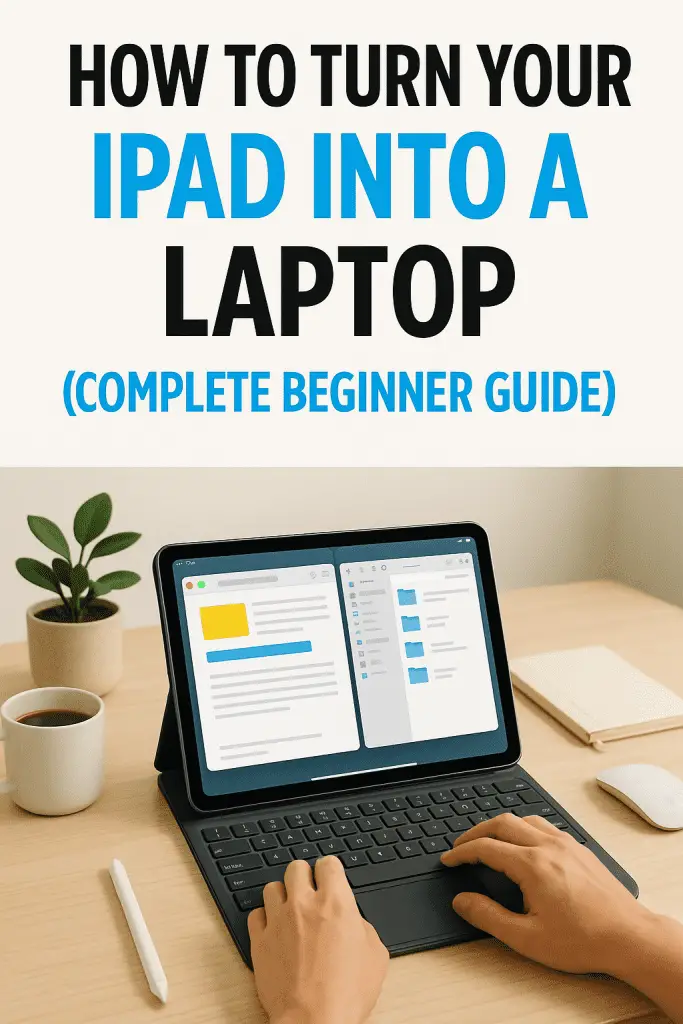
Ever stared at someone using their iPad like a full laptop and thought, “Hold up… how are they doing that?” If so, you’re absolutely not alone. I was in the same boat—lugging my laptop around while my iPad just sat in a drawer waiting for Netflix night. Then one day, after binge-scrolling productivity setups, I finally decided to crack the code—and wow, it changed everything.
If you’ve ever wondered how far your iPad can go, or whether it can replace a laptop for daily work, then grab a coffee—because this beginner guide is your new best friend. We’ll chat through accessories, apps, setup tricks, and real-world usage examples so you can confidently transform your tablet into a super-versatile portable laptop.
And don’t worry—this isn’t a dry tech lecture. Let’s talk like friends 🙂
Why Turn Your iPad Into a Laptop?
Let’s start with the big question: why bother?
If you already own a laptop, this might feel redundant. But consider this—what if your iPad could:
- Replace bulkier gear when traveling
- Become a distraction-free work hub
- Help you work from bed, your couch, or a cafe
- Extend battery life beyond your laptop’s limits
Plus, many modern iPads are shockingly powerful—some even outperform entry-level MacBooks. So why not unlock their potential?
The Essentials: What You Need to Get Started
First things first, an iPad doesn’t magically become a laptop on its own. You’ll need a few accessories and software tweaks to get closer to that desktop experience.
Let’s break it down.
Keyboard (The Most Important Upgrade)
Typing on glass is fine for texts, but for real work, you need a physical keyboard.
Your options:
Apple Magic Keyboard
- Built-in trackpad
- Laptop-style typing
- Premium but pricey
Smart Keyboard Folio
- Light, minimal
- No trackpad, but great typing
Bluetooth keyboards (budget pick)
- Works with any iPad
- Super affordable
IMO, if you want that real laptop feel, go with one that includes a trackpad.
Mouse or Trackpad
Yes, your iPad supports cursor control now—pretty cool, right?
You can use:
- Magic Trackpad
- Apple’s Magic Mouse
- Any Bluetooth mouse
This one change instantly levels up productivity. Scrolling spreadsheets or dragging files becomes effortless.
iPad Stand or Case
Do you want laptop-like posture? Then a stand or keyboard case is a must.
Here’s why:
Having the screen at eye level makes typing and browsing much more comfortable.
Apple Pencil (Optional but awesome)
If your workflow includes:
- Drawing
- Note-taking
- Highlighting PDFs
Then this tool is like having a precision stylus + mouse combo.
USB-C Hub / Ports
This depends on your model. If you want to:
- Connect external drives
- Plug in keyboards
- Hook up monitors
A hub becomes your best friend.
Step-by-Step Setup: Turning Your iPad Into a Laptop
Okay, let’s actually build your new portable workstation.
Step 1: Connect Your Keyboard + Mouse
Turn Bluetooth on > Pair your devices.
The first moment your cursor appears? Pretty thrilling FYI.
Step 2: Organize Your Home Screen Like a Desktop
Think folders, minimal icons, and dedicated pages for:
- Work apps
- Writing tools
- Media & files
Cleaner screens = cleaner mind.
Step 3: Enable Multitasking Features
iPadOS gives you:
- Split View (two apps side by side)
- Slide Over (floating mini apps)
- Stage Manager (desktop-like windows on M1/M2 iPads)
Once you learn these, multitasking becomes so natural you’ll forget this isn’t a laptop.
Step 4: Create File & Storage Systems
Use:
- Files app
- iCloud Drive
- Dropbox / Google Drive
Make folders like:
- “Work”
- “Receipts”
- “Images”
- “Downloads”
Boom—instant laptop vibes.
Apps That Unlock Laptop-Level Productivity
Hardware is half the equation—software is what really seals it.
Here are the must-have app categories.
Word Processing & Office Work
- Pages / Microsoft Word
- Google Docs
Great for typing, assignments, or drafts.
Spreadsheets & Data Work
- Excel
- Google Sheets
- Numbers
These pair beautifully with trackpads.
Creative Work
- Procreate (artwork)
- Affinity Designer/Photo
- LumaFusion (video editing)
Yes, you can design or edit video like a pro.
Note-Taking
- Notability
- GoodNotes
- Apple Notes
With Apple Pencil, these apps feel better than paper.
Browser-Based Tools
Safari on iPadOS supports:
- Desktop-class browsing
- Extensions
- Full cloud-software experiences
That means:
- Canva
- Trello
- Figma
- WordPress editor
Work just like on a laptop.
Maximizing Multitasking: The Secret Weapon
You know how on a laptop you can have multiple windows?
Your iPad can do this too.
Here’s how to multitask like a pro.
Use Split View
Example setup:
- Safari + Notes
- Docs + Sheets
- YouTube tutorial + Canva
It’s honestly impressive.
Stage Manager (for newer iPads)
This lets you:
- Drag floating windows
- Switch workspaces
- Arrange apps freely
It feels like macOS lite.
Quick Switch Between Apps
Swipe from the bottom to toggle apps instantly—so smooth!
Workflows You Can Fully Replace with an iPad
You might be wondering: “But can it really replace a laptop?”
Here are real setups:
College Work Setup
- Google Docs
- Notion
- GoodNotes
Take notes with Pencil, type assignments later—perfect hybrid.
Business Productivity
- Spreadsheets
- PDF signing
Portable and efficient.
Creative Work
- Drawing
- Editing
- Planning boards
Your iPad becomes a full creative studio.
Connecting External Displays
Want that desktop aesthetic?
Connect your iPad to:
- TV
- Monitor
- Projector
But here’s the truth:
Only newer iPads offer true extended display support. Others mirror the screen. Still useful, but not as laptop-like.
Cloud Services Make Everything Seamless
A big laptop advantage is file management.
Your iPad can keep up—if you embrace cloud tools.
Use:
- iCloud
- Dropbox
- Google Drive
- OneDrive
Benefits?
- Faster syncing
- Less storage pressure
- Access files anywhere
It’s like having an invisible USB drive floating in the air.
Keyboard Shortcuts You’ll Love
Did you know the iPad supports laptop-style shortcuts?
Try these:
- Command + Space = Spotlight search
- Command + Tab = Switch apps
- Command + C/V/X = Copy/paste/cut
Once you use them, you’ll never go back.
Limitations You Should Know (Honest Opinion Time)
Before we declare victory, let’s be real.
Your iPad can replace a laptop for many people—but not for everyone.
Here’s when it might struggle:
- Heavy coding environments
- Specialized desktop apps
- External hardware that doesn’t support iPadOS
- Full desktop video production
So, ask yourself:
“What do I really use a laptop for?”
If it’s writing, browsing, creative work, planning, or business docs, your iPad can absolutely shine.
Turning You Into a Power User: Advanced Tips
Want full transformation?
Do this:
Enable File Extensions
This lets you treat iPad like your computer file explorer.
Use Keyboard Shortcuts
Practice until they’re muscle memory.
Create App Workspaces
Example:
Home Screen 1 = Work
Home Screen 2 = Personal
Home Screen 3 = Creative
Use Automation Shortcuts
You can assign actions like:
- Auto-open certain apps
- Convert files
- Rename documents
It’s underrated but powerful.
Real-World Example: My Daily Setup
Let me paint a picture.
Keyboard attached.
Trackpad active.
Notes open on one side, Safari on the other.
Apple Pencil nearby for jotting flashes of inspiration.
Honestly, sometimes I forget I’m not using a laptop—and that’s when you know the setup works.
Budget Breakdown: What Does This Cost?
If you want a price snapshot:
- Keyboard Case: $25–$299
- Mouse: $10–$99
- Stylus: $30–$129
- Hub: $20–$60
You can do it affordably—no need to buy every Apple accessory.
So… Should You Replace Your Laptop?
Here’s how to decide.
YES IF:
- You browse, write, create, or study
- You like minimal setups
- You want long battery life
MAYBE NOT IF:
- You use heavy software
- You manage servers or code intensively
For me, my laptop became my backup—not my main driver 😉
Conclusion: You’re Just One Setup Away From Laptop Life
Turning your iPad into a laptop isn’t fantasy—it’s genuinely practical now. With the right accessories, workflow tweaks, and apps, your tablet becomes a lightweight powerhouse ready for work, school, creativity, or travel.
We walked through:
- Key accessories
- Setup steps
- Productivity apps
- Workflow examples
- Limitations and power tips
Now it’s your turn—start pairing that keyboard, experiment with split screen, and see how far your iPad can go. Who knows? You might join the growing group of people using their iPad as their main computer 😉
And hey—if you end up building a Pinterest-worthy desk setup, send me a pic because I love seeing how people style theirs! 😄
